Most people avoid tracking expenses because it means opening a spreadsheet and doing it all by hand. This skips that part. You set up four folders, drop in two templates we already built for you, and Claude Cowork reads your bank statements and fills in the report itself, categorized, flagged, and ready to review.
Takes about five minutes to set up once. After that, it's one prompt a month.
Create your Finances folder
On your computer, make one folder called Finances, then create four folders inside it:
- Outputs: where your finished monthly reports land
- Receipts: any receipts you want kept on file
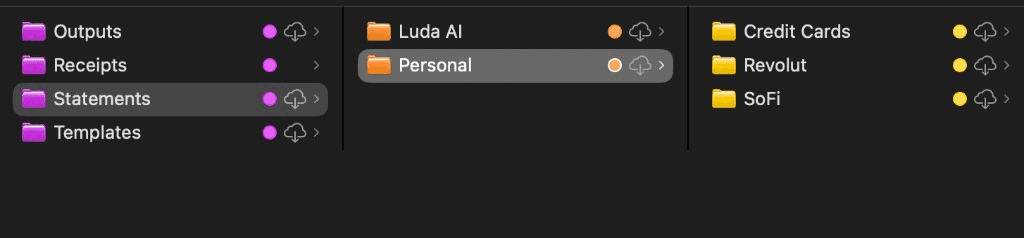
- Statements: your downloaded bank/card statements
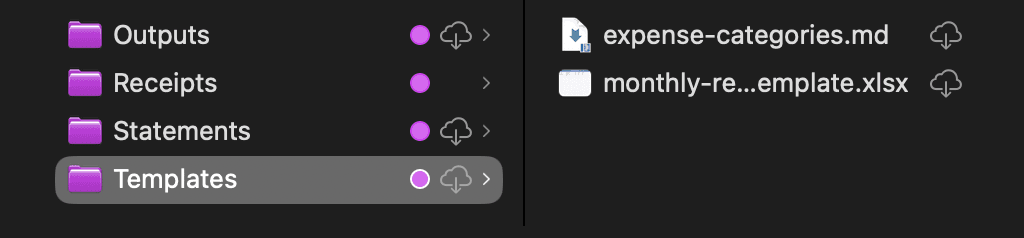
- Templates: the two files from Step 2
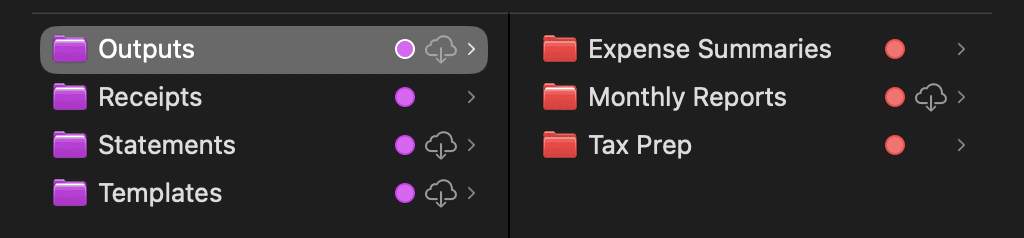
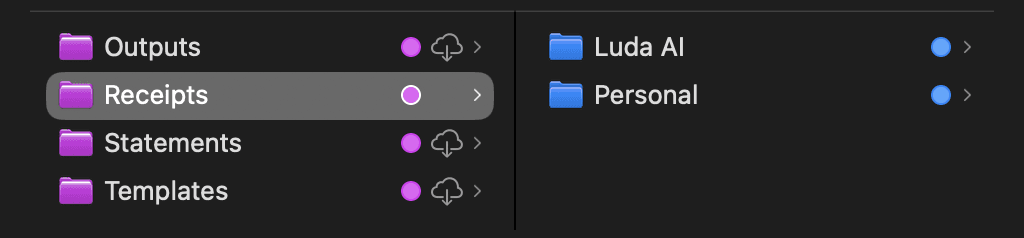
That's it for structure. You don't need sub-folders by month or by business. Cowork handles the organizing once the files are in place.
Add the two templates
Download the two files below and put both of them in your Templates folder:
A spreadsheet with a Transactions tab, a Monthly Summary tab, and a Yearly Overview tab. This is the file Claude fills in for you, so you never have to build formulas or formatting yourself.
Download .xlsx ↓A reference file that tells Claude exactly how to categorize each transaction, from software subscriptions to ads, travel, and groceries, so every report stays consistent month to month.
Download .md ↓Customize your templates (one time)
These templates come with generic placeholders. Before your first month, open expense-categories.md in a text editor and:
- If you're tracking a business alongside personal spending, replace the example software tools with the ones you actually use, and rename "Business" to your actual business name if you'd like
- If you're just tracking your own personal finances, you can delete the entire Business section and skip straight to the Personal categories, or leave it in case you ever freelance or side-hustle
- Set your currency (or currencies, if you spend across more than one)
- Add or remove categories so the list actually matches your life. Not everyone has a "Travel (Business)" line, and not everyone needs "Clothing" broken out separately
Takes about two minutes, and you won't need to touch it again. Every month after this just works, whether you're tracking one budget or two.
Drop in your statements
Download your statements (PDF or CSV) from your bank or card provider for the month you want to track, and put them in the Statements folder. If you have more than one account, organize them into one sub-folder per bank or card, for example:
- Statements/Credit Cards
- Statements/Checking Account
- Statements/Venmo
You don't need to clean these up first. Claude reads the raw PDF or CSV exactly as your bank exports it.
Run one prompt
Open Claude Cowork, point it at your Finances folder, and paste this in (swap in the month you're working on):
Read all PDFs in Statements/ and extract every transaction from
[MONTH] [YEAR]. Use the monthly-report-template.xlsx in Templates/
as your structure. Fill the Transactions sheet with every line item,
categorize each transaction using expense-categories.md in
Templates/, then populate the Monthly Summary sheet. Save the
completed file to Outputs/Monthly Reports/ as
[YEAR]-[MM]-Monthly-Report.xlsx
Want more control? Add a line to the prompt. Things like "flag anything over $500" or "only summarize my personal expenses". Cowork will do just that and provide you back a detailed report.
Teach Cowork your specific accounts (optional)
The first five steps get you a real, categorized monthly report. This step is for once you've run it once or twice and want Cowork to stop flagging things that are actually normal for your life.
Download the instructions template below and rewrite it as if you're briefing an assistant who's never seen your finances before, because that's exactly what it is. Tell it what each of your accounts is actually for, which recurring charges to expect and where, what date format you use, and what's genuinely worth flagging versus what just looks unusual but isn't. Drop the finished file into your Templates folder alongside the other two.
Download instructions template (.md) ↓
- Stops Cowork from flagging a subscription as "misrouted" when it sometimes lands on a different card on purpose
- Stops it from flagging a bill as "missing" when it only charges every two months
- Gets dates read correctly if you use a different date format than your bank's statements do
- Lets you tell it once which recurring charges to expect, instead of re-explaining every month
This one takes longer than the others, ten to fifteen minutes instead of two, because you're teaching it the specific shape of your finances. Worth doing once you're actually using this monthly, skippable if you're just trying it out.
A categorized, flagged monthly report, built in minutes instead of hours, every single month.